

Conditions, effects and data
The story’s logic, its conditions, its memory, its data, lives in the inspector
(⌘2), never tangled into the words on the page. That keeps the script clean to read,
and keeps logic and prose in separate places, so two people can work on each without
stepping on the other.
Conditions
Section titled “Conditions”A condition decides whether a piece of content shows. Click a snippet or group’s Condition row (or + add condition) to open the visual editor:
- Build each test from pills, a property, a comparison, and a value.
- Join them with and / or.
- Pick properties and built-ins from a menu, with no need to remember names.
It checks as you build, and the finished test shows on the snippet as a quiet if …
tag. With no condition, the content always shows.
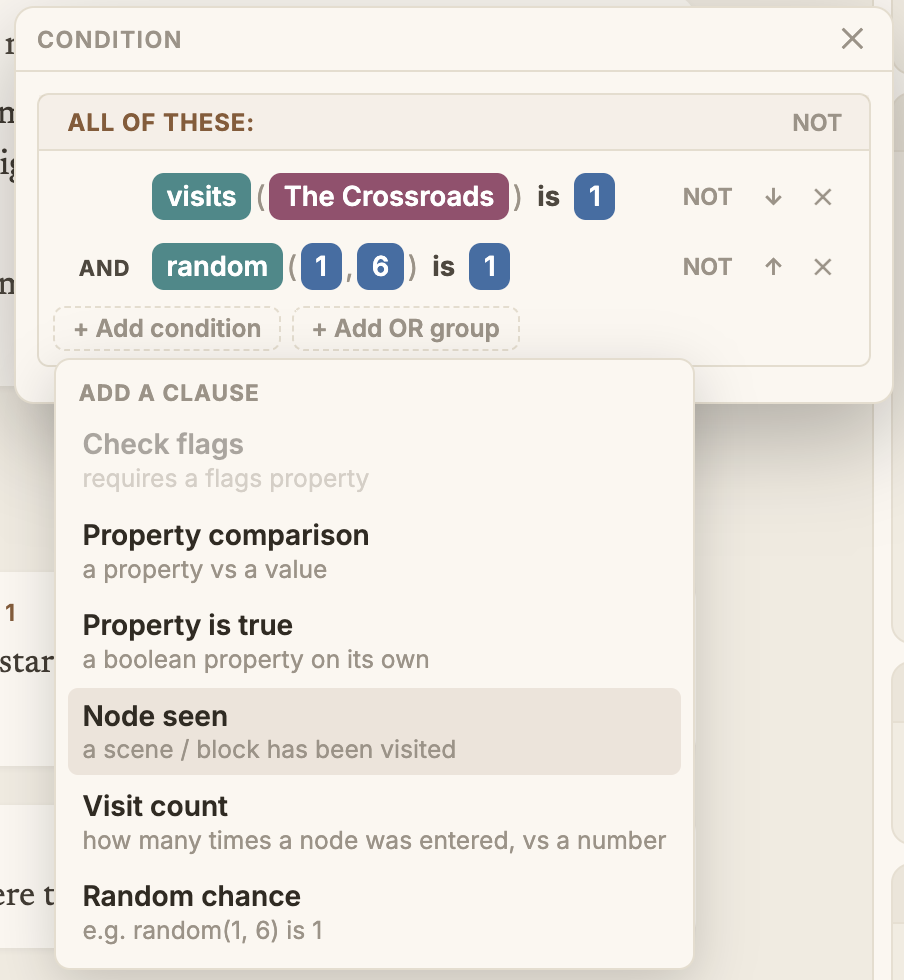
The Crossroads).Conditions read the properties you’ve set up (below) and built-ins like seen()
and visits(), which track where the player has been.
Effects: making something happen
Section titled “Effects: making something happen”A snippet can change what the story remembers, either when the player reaches it
(On begin) or when they leave it (On end); a scene can do the same on the way in.
Open the row and list the changes you want, set @gold to 10, turn @metTheCaptain on,
built with the same visual editor as conditions.
Effects change what the story remembers. To make something happen out in your game (play a sound, start a quest), you don’t reach for an effect: you leave a game event or some Game Data on a beat (below) for your game to act on when the beat plays.
Properties: the story’s memory
Section titled “Properties: the story’s memory”Properties are what your story remembers and checks as it plays, gold, reputation, whether a door has been opened. You give each one a name and a type up front, so the editor can offer it to you by name and catch a typo before it turns into a bug.
There are three kinds, told apart by who owns them.
A @patter property is remembered for the whole story. You declare it on the
Properties page, at the top of the navigator.
A @scene property is the same, but written for a single scene. You declare it on that
scene.
A @world property is owned by your game, not the story, the player’s class, the
current threat level. The story only reads these; your game supplies the values while it
runs. Declare them in Project Settings ▸ World Properties so the editor knows they exist.
A property can be a yes/no, a number, some text, a pick-list (choose one
value, or choose several), or a Quality. And two built-ins, seen() and visits(),
always know whether, and how often, the player has been somewhere.
Quality is the one worth knowing about, because it saves the most work. It holds an
ordered ladder, say unaware → suspicious → certain → confronted, and the order is what
you get to use: a line can be gated on “at or past suspicious” instead of listing every
stage that counts, and an effect moves the story on one rung without naming where it
lands. That last part is why you can add a stage in the middle later, after the lines
around it are written and recorded, and nothing you already wrote needs revisiting.
The rule of thumb: a flag records that something happened; a Quality records how far along a story is. If asking “or past it” makes sense, use a Quality. Property types goes through all six with examples.
What a property chip can tell you
Section titled “What a property chip can tell you”Wherever a property appears as a chip (in a condition, in an effect, in the read-only rows on the inspector), it will answer two questions about itself.
Hover it for the note written on its declaration (the Purpose field), and, for a Quality, its ladder of stages. That note is worth filling in, because it is what everyone else on the project reads when they meet the property in a line you wrote.
Right-click it for Go to definition, which opens where it is declared (the Properties page, the scene’s own properties, or Settings ▸ World Properties), and Find usages, which opens the search window’s property mode listing every read and write of it, each with its location.
Game Data: your own fields
Section titled “Game Data: your own fields”Game Data is where you hang your own details on the story, the things Patter doesn’t model itself: a mood for a line, a camera angle, the id of a sound to play.
- In Project Settings ▸ Game Data, decide what fields each kind of beat can carry (a name, a type, a default value).
- In the inspector, fill them in on any beat. You only store what you change, so adjusting a default updates everywhere you left it alone.
Your game reads these off each beat as it plays. That’s how a story hands over its cues, what to play, where to point the camera, which quest to nudge, without baking your engine into the script. The Game Data & addressing page has the game side.
Tags are freeform labels you can stick on anything: a beat, a snippet, a group, a block, or a whole scene. No setup, just type a word. Use them for whatever cuts across your story: “act 1”, “combat”, “tutorial”, “barked”.
Add them in the inspector’s Tags row: type and press Return or comma to add one, click the × to remove it. Each tag gets its own colour. A tag on a scene counts for everything inside it, so tagging a scene “act1” tags every line in it at once. Your game can read tags too, see Game Data & addressing.
Addresses (Game IDs)
Section titled “Addresses (Game IDs)”Scenes and blocks have a readable address your game uses to start them (“play this scene”). It follows the name to begin with, and stays muted until it’s pinned; pinning keeps the address steady even if you rename the scene later. Publish Bundle pins it for you the first time the scene goes out, since that’s when your game can start relying on it, so until then you can rename freely. Either way, renaming never breaks a jump inside the story. Edit it in the inspector at the scene or block level.
When something’s off
Section titled “When something’s off”The problems bar along the bottom flags issues in plain language as you type, with ‹ ›
to step through them, and the spot itself is underlined. Many come with a one-click fix: Add
«name» to cast, Set up «prop», Choose where it goes… for a jump with no target, Add a
label for a choice missing its prompt, or Pick a valid value…. Spelling suggestions appear
here too, and never block a build.
Open source under the MIT licence, made by Ian Thomas.