

Writing status
Patterpad can track how finished each line is, from a first stub to a final, shippable beat. You set a status as you draft and see it as you read. It’s yours to plan with: it lives in the project’s own files (the source language), never ships to your game, and never touches play. (Where it rolls up into reports lives under Running the project.)
Only line (dialogue) and text (narration) beats carry a status. Game Event beats, the silent cues to your game, are never tracked and never counted in production stats.
The status ladder
Section titled “The status ladder”A project has an ordered ladder, not-started to done. The default is:
stub → draft 1 → draft 2 → edited → final
(A beat with no status set reads as the lowest stage, stub.)
Two of the stages are readiness thresholds. One marks “ready to record” (everything at that stage or later counts as recordable), and one marks “ready to ship”. The production report uses these to tell you how much of the script has crossed each line.
Edit the ladder in Project Settings ▸ Status, where you can rename stages, reorder them,
add or remove them, and move the two readiness markers. Each stage carries a colour drawn from your
project’s theme, so it adapts on its own to light and dark and to the colour themes. A beat
with no status set reads as the first stage (stub) in the report.
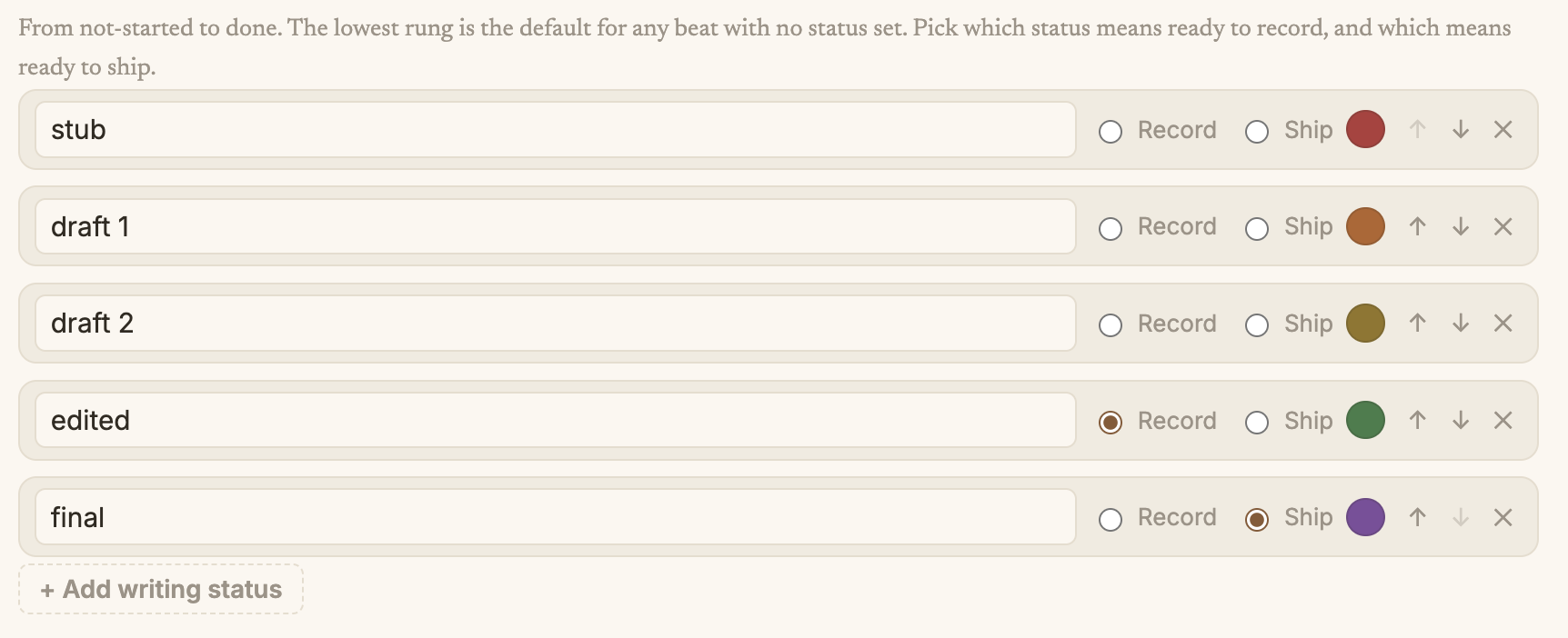
edited = ready to record, final = ready to ship). Reorder stages with the arrows, or add your own.Setting a status
Section titled “Setting a status”Patterpad keeps the writing surface calm: the status controls only show when you want them. You set a status in one of three ways:
- Right-click a line or text beat and choose Status ▸ … to set that one beat. Each option shows its colour, so the ladder reads at a skim.
- Right-click a snippet, group, block, or scene and choose Status ▸ … to flow the status down to every line and text beat inside (game event beats are skipped). It also works on a selection of several snippets, so you can mark a whole run at once.
- Select a line or text beat, and a Writing dropdown appears at the top of the inspector, tinted to its current stage. Pick a stage; picking the lowest one clears the status (a line with none set reads as the lowest stage).
Seeing status in the script
Section titled “Seeing status in the script”While you write, the status stays out of sight. Pick the stages to show from Review ▸ Writing Status for a small colour badge in the left gutter beside each line, tinted by its stage. It’s a quiet, optional overview: flip it off for a clean page again, and it hides itself in Writing View.
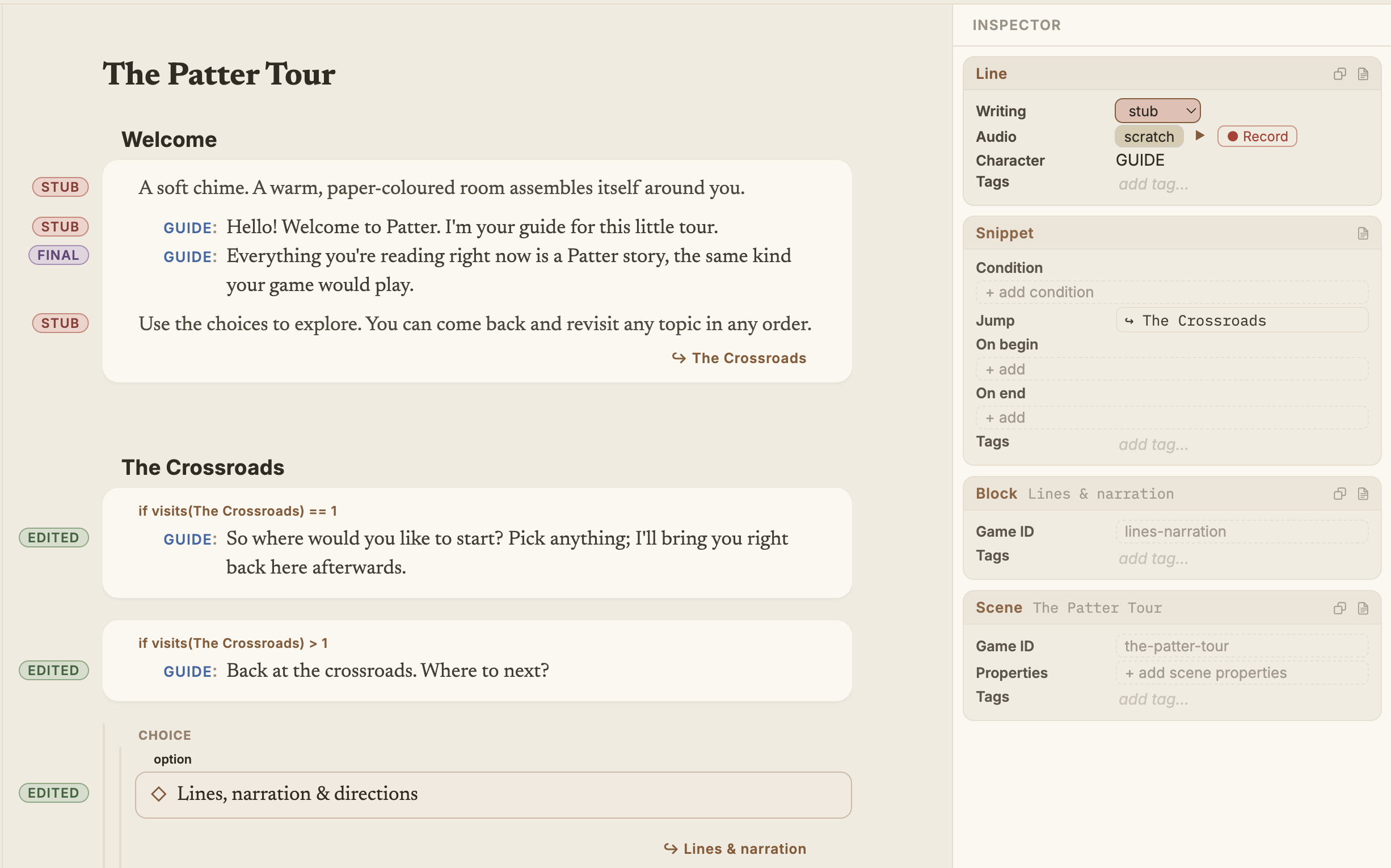
stub, edited, final) tint each line by its stage, while the inspector's Writing dropdown (top right) sets the status for the selected beat.Where it rolls up
Section titled “Where it rolls up”Writing status feeds the Production Information report: line counts by stage, scene by scene, and how much has crossed “ready to record” and “ready to ship”. That reporting side lives under Running the project, see Tracking & reports. To list and jump to every line at a given stage while you write, open Review ▸ Find Lines by Status… or switch the search window to its Writing mode.
Recording a scratch take
Section titled “Recording a scratch take”Voiced projects track a second, separate recording status for each spoken line. Most of that is a producer’s job, but one piece is worth knowing about as a writer: in Audio Folders mode you can record a quick scratch take of a line in your own voice, right at your desk, and hear the scene read back before anyone books a booth. The inspector shows a ● Record button on the line, gives a short 3, 2, 1 countdown, captures your microphone, and saves the take, no files to shuffle.
The rest of the recording pipeline (the status ladder, audio folders, table-read playback, and the scratch setup) lives under Running the project, see Audio & recording.
Open source under the MIT licence, made by Ian Thomas.