

Search and navigation
Patterpad searches the whole project, every scene, not just the one you have open, and jumps you straight to a line. Search lives in a small floating window that stays on top of the editor, so you can step through matches and keep working without losing your place.
Opening search
Section titled “Opening search”Press ⌘F (macOS) / Ctrl-F (Windows / Linux) to open the search window. Press it again to bring the window back to the front if it slips behind the editor.
The window floats above the editor (above Patterpad, not above your other apps), which stays live underneath. Drag it by its top bar to move it, and the pin button keeps it on top. Close it with ✕ or Escape.
Finding a line
Section titled “Finding a line”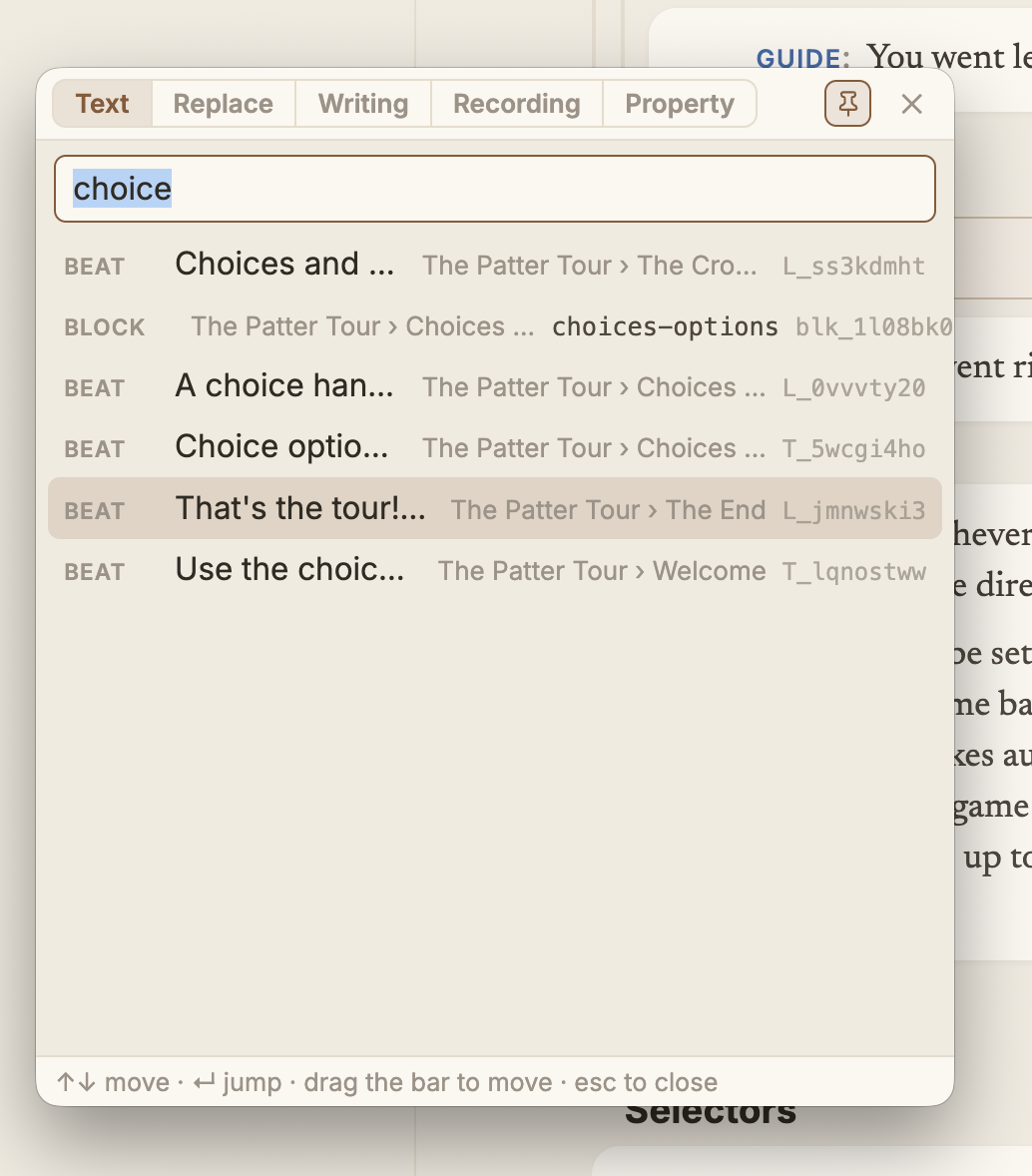
↑ / ↓ move, Enter jumps, and you can drag the bar to reposition the window.Type in the box and matches appear instantly. Search covers dialogue and narration, the words your characters say and the prose the player reads. It covers scene and block titles, and their Game IDs (the addresses your game uses).
It covers the internal id of any line too. Paste an id like L_0n7vdq42 and search finds the line
it names, shown with its text and location. That’s handy when a
localisation string, an
audio filename, a coverage report, or a runtime log
hands you an id and you need to see which line it is.
(See the two IDs.)
Results are ranked around your cursor: hits in the scene you’re editing come first, starting from where your cursor sits, then the rest of that scene, then everywhere else, so the nearest matches are at the top.
Move through results with ↑ / ↓ and press Enter to jump, or click a result. Either way the editor jumps to that line and centres it, and the search window stays open, so you can run straight down a list of hits, checking each one in turn.
Patterpad only ever shows and searches the source language, the language you write in. Translations live elsewhere, so search results are always your original lines.
Replacing text across the project
Section titled “Replacing text across the project”Switch to the Replace tab (or press ⌘⌥F / Ctrl-H) to find-and-replace across every scene, not just the open one. Type what to find, type the replacement, and the list previews each line as before → after. Replace all then rewrites every match at once, asking you to confirm the count first. The Replace button on any row applies just that one.
Replace only ever touches dialogue, narration, and choice text in your source language. It never touches ids or Game IDs, conditions or effects, or your translations. Every change is written through version control, so a project-wide replace is one commit you can review and undo. Your open scene is saved before the replace runs, and reloads with the new text afterward.
Browsing by writing status
Section titled “Browsing by writing status”The Writing tab finds lines by how finished they are. Open it from the tab, or jump straight in with Review ▸ Find Lines by Writing Status… (⌘⇧L / Ctrl-Shift-L).
Pick a status chip, one per stage of your writing-status ladder, each with its own colour, and the window lists every line at that stage across the project (a line with no status set counts as the lowest stage). Type in the box to filter that list, then jump the same way: ↑ / ↓ and Enter, or click.
This is the fast way to answer “what’s still at stub?” or “show me everything marked final”, and to walk through those lines one by one. It pairs with the production rollup, which gives you the counts; the Writing tab gives you the lines themselves.
Browsing by recording status
Section titled “Browsing by recording status”If your project is Voiced and tracks audio status, a Recording tab appears alongside Writing. It works the same way: pick a recording stage (missing, scratch, recorded, final, or your own) and it lists every spoken line at that stage, so you can pull up “everything still missing a take” and work through it. The tab stays hidden until both Voiced and Track audio status are on.
Finding where a property is used
Section titled “Finding where a property is used”The Property tab answers “where is @x used?”. Type a property (@gold, @world.threat, or
faction rebels to narrow by value) and it lists every place that property appears, in a
condition, an effect, or interpolated into a line. It’s the quick companion to the
coverage test: when a branch reads as
needs input because it’s gated on @world.something, the test’s link opens this tab on that
property. You can also open it from Review ▸ Find Property Usage….
Browsing by tag
Section titled “Browsing by tag”The Tags tab browses your author tags. It
shows a chip for every tag in the project with how many nodes carry it; pick one and the
window lists every scene, block, group, snippet, or beat carrying that tag, so you can walk
everything marked whisper or tutorial and jump between them. Type in the box to filter the
list. Open it from the tab or from Review ▸ Find by Tag….
It matches the tag where you actually applied it, not the runtime-accumulated set, so a beat only shows up under a tag if that beat itself carries it, not because its scene does.
Browsing by speaker qualifier
Section titled “Browsing by speaker qualifier”The Qualifier tab finds lines by their speaker qualifier. It
shows a chip for each of the project’s qualifiers with how many lines carry it; pick one and the
window lists every line, and every option prompt, with that qualifier, the scene you’re in first. Type
in the box to filter the list, then jump the same way. Open it from the tab or from Review ▸ Find
Lines by Qualifier…. It’s the quick way to walk every (V.O.) thought in the game, or check each
RADIO line before it goes to the studio.
Open source under the MIT licence, made by Ian Thomas.