

The writing surface
The centre column is where you write. It reads like a film script, character cues, dialogue, and stage directions, and you type into it much like a good word processor. A lot of what makes it fast stays out of sight until you want it; this page walks through the whole thing.
Snippets, cues, and beats
Section titled “Snippets, cues, and beats”A run of dialogue and narration that plays together is a snippet, drawn as a soft rounded card. Quiet space sits between snippets, so the shape of a scene is clear at a skim without the page turning into boxes and lines.
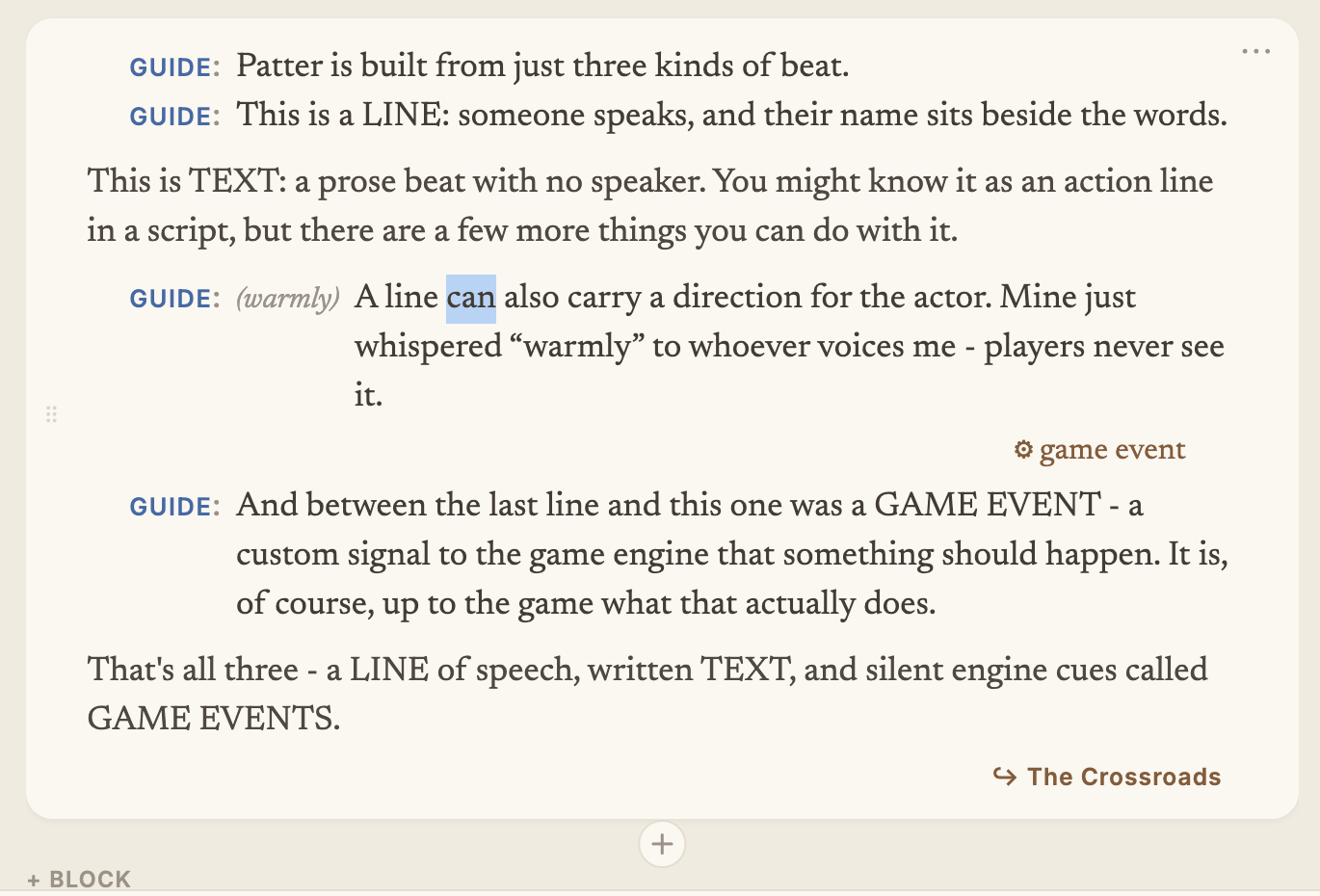
GUIDE cue beside the words), a text beat (prose with no speaker), a line carrying an inline (warmly) direction, and a silent ⚙ game event. The ↪ The Crossroads chip is a jump; the ⠿ grip reorders the snippet and ⋯ opens its action menu.Inside a snippet are beats, and there are only three kinds. A line is someone speaking, with their name beside the words. A text beat is narration or description, with no speaker. A game event is a silent cue to your game (play a sound, move the camera) that the player never sees.
A character’s name is a coloured tag, not something you retype each time. Each
character keeps their own colour, so you can see who’s speaking as you skim. An empty
line shows a faint <character>: until you name a speaker.
Naming a speaker
Section titled “Naming a speaker”Click or arrow into a name and a small picker opens:
- Type to filter your cast.
- ↑ / ↓ move through the matches.
- Enter or Tab accepts the highlighted name.
+ Add "<name>"adds someone new.- Esc (or a click away) closes it.
Anyone you name is added to the cast for you, so there’s no cast list to set up first.
Speaker qualifiers: V.O., O.S., RADIO
Section titled “Speaker qualifiers: V.O., O.S., RADIO”A speaker qualifier says how a line is delivered: TAM (O.S.)
for Tam heard but not seen, PLAYER (V.O.) for a thought, GUARD (RADIO) for a voice through a
radio. It is picked, not typed. Choose it from the Qualifier list in the line’s inspector, or
press ⇧⌘E (Ctrl-Shift-E off the Mac, also Edit ▸ Cycle Speaker Qualifier) to step the
line through the project’s list and back to none. An option’s spoken prompt takes a qualifier the
same way. The cue shows it after the name. When the project has no qualifiers, ⇧⌘E says so and
points you to Project Settings.
Runs look after themselves. A new line by a character takes the qualifier of that character’s
last line above it in the scene, so a run of thoughts or a radio exchange needs one pick, not one
per line; pick none to end the run. A line by someone else starts clean. The qualifier is saved on
each line, so nothing changes later if the lines around it do. Duplicate keeps each copied
line’s qualifier as it was, and turning a line into narration (⌘T) drops its qualifier, since
narration has no speaker.
A qualified line is still the same character. The cast, the report, and every count treat TAM and
TAM (O.S.) as one. To find every line with a given qualifier, use Review ▸ Find Lines by
Qualifier… (see Search).
Typing: lines, narration, and directions
Section titled “Typing: lines, narration, and directions”Most of writing is just typing. These keys cover the rest:
| Key | What it does |
|---|---|
| Enter | A new line in the same snippet |
| Shift-Enter | Start a new snippet |
| Tab | Turn a plain line into dialogue (and open the name picker); also finishes a name or a (direction) |
⌘T / Alt-T |
Switch the current line between dialogue and narration, keeping the words |
| Space at the start of a line | Turn it into plain narration |
( … ) |
Add an inline (direction) to a spoken line |
⌘B / ⌘I |
Bold / italic the selected words |
You rarely need to memorise these: the hint bar along the bottom always shows the few keys that matter right where your cursor is.
A direction is a note to the performer that the player never hears, like (warmly)
or (under her breath). Write it in round brackets inside a spoken line. It isn’t part
of the spoken words, so it’s never translated or voiced; it’s just guidance for whoever
reads the line.
Bold and italic are available when formatting is turned on for the project (Project Settings ▸ General); names and directions always stay plain. Your styling travels with the words into every language and on into your game, which draws it in its own style.
A direction is not the same as a closed caption. An inline caption uses square
brackets, [sighs], and is shown to the player unless they switch captions off; a
(direction) is only ever for the performer and the player never sees it. That’s a
writer’s call, covered in
Closed captions ▸ Authoring.
Pasting a block of dialogue lays each line out as its own beat automatically.
Pauses between lines
Section titled “Pauses between lines”How long to wait after a line, and when to let the next line cut in on it, is set in the inspector. Pad after on a line or a piece of narration is the pause after it, in seconds. A positive pause waits, zero follows at once, and a negative one starts the next line that long before this one ends, cutting in on it. Leave it empty and the line takes the Default pad from the nearest snippet, group, block, or scene above it that sets one, then the project’s (Project Settings ▸ General), then 0.6 seconds. The empty field shows the value it will take, and where from. A pause runs from -10 to 60 seconds, and the field pulls anything outside that back into the range.
Nothing can cut in on a snippet’s last line, because what follows it isn’t settled until the story chooses, so the field won’t go below zero there. A negative pause that lands there by moving lines around is flagged, and plays as no pause. A negative pause before a game event is fine, and starts the event that long before the line ends.
An option’s prompt has a Pad after too. When the prompt is spoken, its pause times the reply, so a negative one has the reply cut in on the question as it’s being asked. Each option has its own, so one answer can come at once and another after a long silence.
Pauses stay with the words they follow. Merging two lines keeps the pause of the line whose end the merged line now has, and splitting a line gives its pause to the tail.
When lines move into another snippet (joining two snippets, merging one into the snippet before, or ungrouping), and every moved line inherits its pause, they take the new snippet’s default. If any of them sets its own, every moved line keeps the pause it had.
Pauses are often settled after recording, so there’s no need to set them while writing. Play times the scene with them, and your game reads them from the bundle.
When a line is flagged
Section titled “When a line is flagged”The problems bar names anything about a qualifier or a pause that needs a look, on the line itself:
- The qualifier isn’t one of the project’s qualifiers. It was removed from the list in Project Settings, or the file was edited by hand. The fix, Pick a qualifier…, chooses another or none; you can also add it back under Project Settings ▸ Qualifiers.
- The pause is outside the range Patter allows. Use a number of seconds from -10 to 60.
- Nothing can cut in on this line. It ends its snippet, so its negative pause plays as no pause. Set it to 0 or more. This is a warning, and never stops a build.
Moving around
Section titled “Moving around”Beyond the usual arrows and clicks, two things are worth knowing:
- The left and right arrows walk through a line a piece at a time, name, direction, words, and carry on to the next line at the end.
- Undo and redo (
⌘Z/⇧⌘Z) cover everything, including structural changes like splitting or reordering a snippet, so you can always step back cleanly.
Building structure as you type
Section titled “Building structure as you type”You rarely need a menu to add something:
- A “+” in the gap under a snippet adds another snippet.
- An empty snippet shows a faint “+”; click it to start writing.
- On a blank line,
/opens a quick menu: add a game event or a jump, split here, or follow on with a snippet, a branch, a choice, or one of the sequence presets (once each, cycle, or shuffle).
The full set of structural tools, choices, selectors, jumps, and the ⋯ menu, lives in Structure & branching.
Selecting and moving whole chunks
Section titled “Selecting and moving whole chunks”You can grab whole snippets and groups, one or many:
- Hold Shift and click to select a range.
- Hold ⌘ / Ctrl and click to add or remove one at a time (so you can pick, say, the first, second, and fourth).
- Click the empty background to clear the selection.
- With something selected, press ⌫ to delete it (with a quick confirm), or use right-click ▸ Wrap in to group it.
To reorder, grab the ⠿ grip on the left and drag a snippet, group, or block; the page opens a gap to show where it will land, and Esc cancels mid-drag. Dragging an option out of a choice turns it back into a plain snippet.
Sections and titles
Section titled “Sections and titles”- The scene title at the top is editable in place. Right-click it for a scene note, or to set the writing status of the whole scene at once.
- Each block is a section with its own heading (which also names the place jumps land). “+ block” adds another, the grip reorders, and right-click adds a note.
Once the scene title scrolls away, the top bar keeps showing the scene name, so you always know where you are.
Open source under the MIT licence, made by Ian Thomas.