

Playtesting your story
Patterpad can run your story, not just show it. The Play window walks the real runtime, the same engine your game will use, so you can take the choices, watch the branches, and hear how a scene lands before anyone else sees it.
Starting a playthrough
Section titled “Starting a playthrough”- Use Play ▸ Play Scene (
⌘P) to open the play window and start from the scene you’re editing. - Use Play ▸ Play from Start (
⇧⌘P) to run from the project’s start point instead (you’ll be asked to set one the first time). - To start partway in, right-click a block and choose ▶ Play block.
The window is pinned by default, so it stays above the editor while you work. That is above Patterpad, not above everything else on your screen. Unpin it from its own pin control.
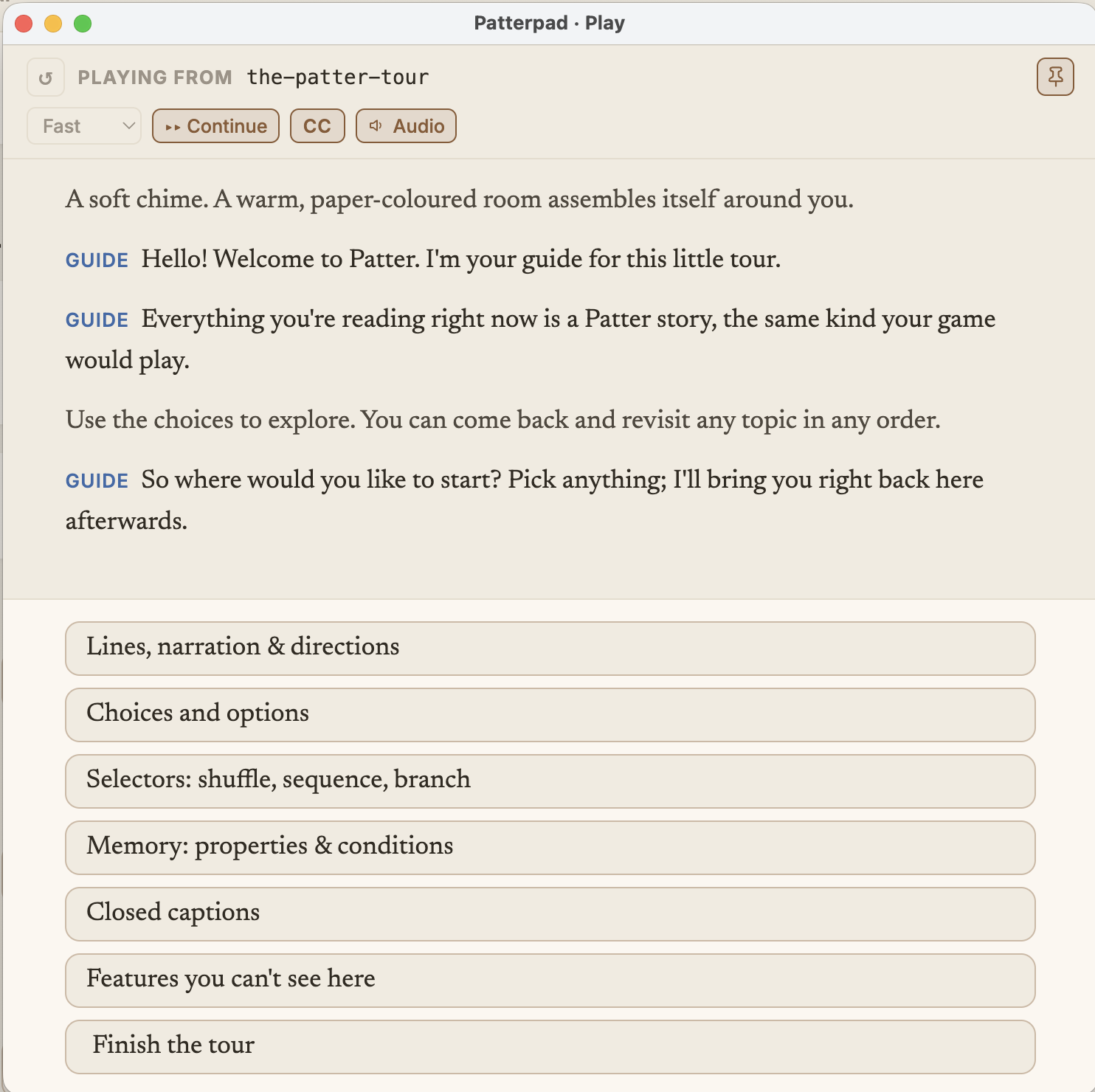
The controls
Section titled “The controls”Step (▸) plays one beat, a line, a piece of narration, or a game event.
Auto-continue (the ▸▸ Continue toggle in the header, on by default) turns Step into Continue to next stop. It plays on to the next choice or the end, revealing one line at a time. ◼ Stop pauses the reveal, and Step/Continue picks it back up. Turn it off to step one beat at a time.
Continue times the scene the way the game will. A line lasts as long as its recording, when it has one, or as long as it would take to read, and then waits for its pause before the next line starts. Narration is timed by the same reading estimate. Recordings exist only in an Audio Folders project, and a line that has one is timed by it even with Audio off, so muting doesn’t change the timing. A line with a negative pause is cut in on, so the next line arrives before it finishes and both play at once. The options appear as the line before them starts, so you can choose while it’s still playing. The end comes when every line has finished, and the reply after a choice starts at once. Step ignores pauses, since you decide when each beat plays.
Speed (Half / Normal / Double / Instant) speeds the whole timing up or slows it down, so you can skim a scene without losing its shape. Half and Double also play each recording slower or faster, with its pitch kept. Under Continue, Instant drops the waits entirely and plays no audio. Step still plays each line’s clip at Instant, at the clip’s own pace.
Options you can take are buttons; ones whose condition isn’t met are shown faded and can’t be clicked. Pick one and the story moves on.
A line with a speaker qualifier shows it after the name, as the
script does, TAM (O.S.).
A line that names another engine’s scope, such as the Storylet Engine’s @story.act, plays
where the game shares its scopes:
the window stands that engine in, reading the defaults its file declares. Without the shared
folder, the window can’t know those values and says so, with the way to fix it (File ▸ Share
Scopes with Other Tools, or declaring the scope under World Properties); with the folder but no
file for that engine yet, it names the file that’s missing.
Restart (↺, top-left) starts the run again from the top at any time, and the same ↺ Restart shows up at the end.
The CC control shows or hides the non-spoken caption cues (on by default). In an Audio Folders project an Audio toggle also appears, turning Continue into a table-read that plays each line’s recording, overlapping where one line cuts in on another.
The editor follows along
Section titled “The editor follows along”As it plays, the editor keeps pace. The current line gets a gliding marker and a soft wash, everything it’s already played picks up a faint “visited” dot, and the editor changes scenes when the story does. The speaker colours match the ones you see while writing.
Edit the scene mid-run and the change applies live. A reworded line plays its new text the next time it comes up, and even structural edits carry the run across (the playthrough keeps its place; a quiet “Edits applied live” note confirms it). Only an edit that doesn’t compile yet, say a half-finished line of logic, pauses the controls with a “Scene changed: restart” note until you restart or finish the edit.
Playing in another language
Section titled “Playing in another language”If your project has more than one language, the play window gains a language switcher;
changing it replays the story in that language (lines that aren’t translated yet show as
<Untranslated>). This is the one place Patterpad renders anything but your source
language. See Localisation.
Playtesting inside your actual game
Section titled “Playtesting inside your actual game”The Play window runs the story; sooner or later you want to feel a line inside the real game, with its voices, pacing, and presentation. You can have the same live-edit loop there too: run the game on your machine, and saving in Patterpad pushes your edit straight into the running game, no rebuild, no restart, no losing your place. Reword a line, save, and the game speaks the new words the next time it comes up; the editor also follows the game’s cursor, highlighting the line being played.
This needs a one-time hookup on the game side (the live refresh & debug link), so ask your developer to wire it in; it’s a few lines, described in Live refresh & debug. Once it’s in, writers just save.
Testing every path, not just the one you took
Section titled “Testing every path, not just the one you took”Playing walks one route at a time. To check that every line is reachable, and to catch choices that can silently run dry, use the Coverage Test (Review ▸ Coverage Test…). See Coverage testing.
Open source under the MIT licence, made by Ian Thomas.