

Tracking and reports
Once the writers are drafting, this is where you see how much is done and what’s left, catch content players can never reach, and turn the project into the reports and scripts other people need. Writers set each line’s writing status as they go; here it rolls up into numbers you can plan with.
The writing-status rollup
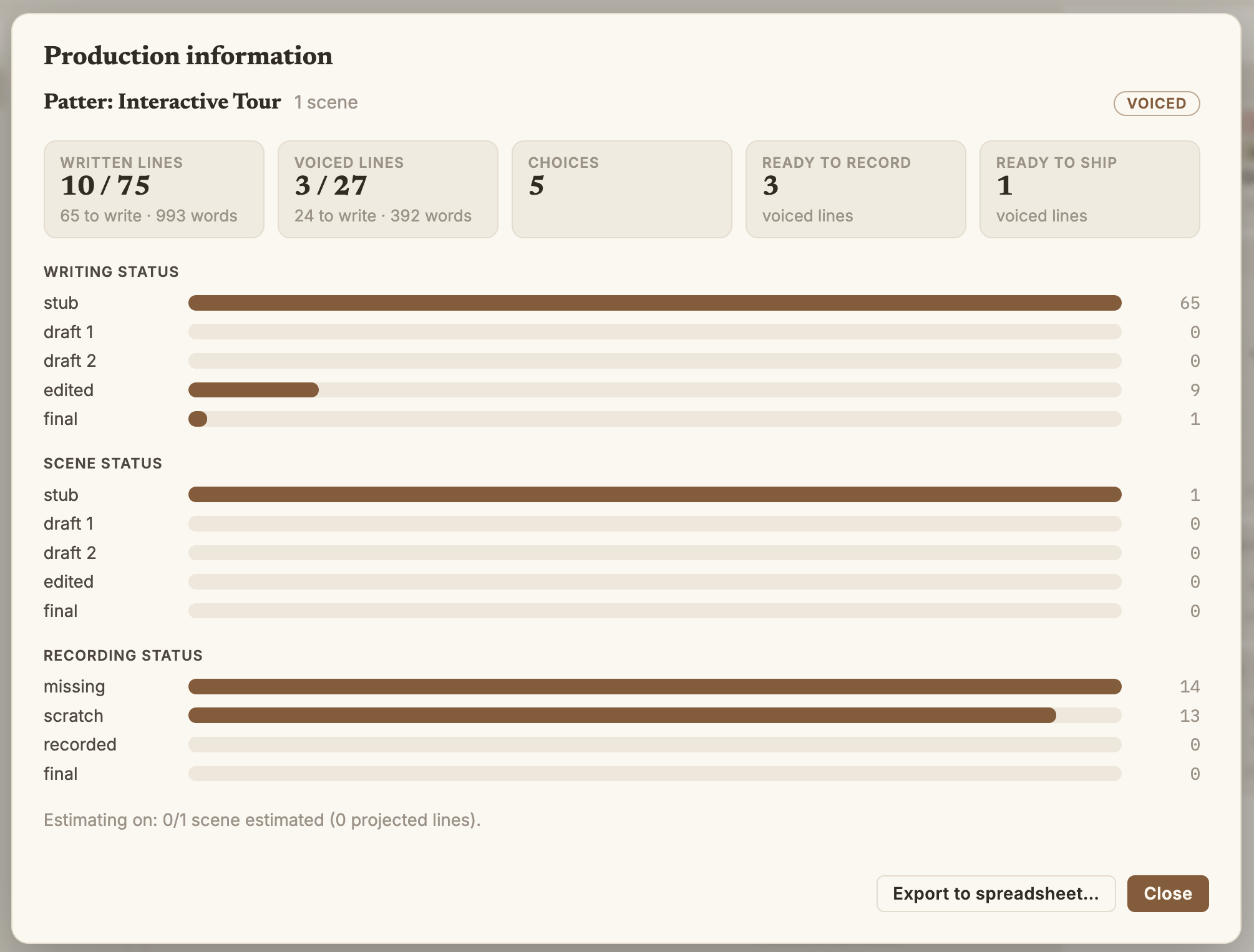
Section titled “The writing-status rollup”Writing status feeds Production ▸ Production Information (and the exported report) with each scene’s line counts broken down by stage, plus how many voiced lines have crossed the “ready to record” and “ready to ship” thresholds. Since game event beats aren’t tracked, they never skew those totals. The numbers reflect only the lines actually written and (if you like) voiced.
Where the report gives you the counts, status search gives you the lines. Open Review ▸ Find Lines by Writing Status… (or switch the search window to its Writing mode) to list and jump straight to every line at a given stage. It’s the quick way to pull up “everything still at stub” and work through it.
Scene status
Section titled “Scene status”Every scene also has a status: the stage of its lowest beat, its weakest link (an unset beat counts as the lowest). The report shows each scene’s status and counts how many scenes sit at each stage, so you can see which are furthest from done.
Coverage testing
Section titled “Coverage testing”Rollups tell you how much is written; coverage testing tells you how much is reachable. Review ▸ Coverage Test… plays the story through many times, flags content no player can reach and choices that run dry, and drives branches gated on values only your game sets. It has its own page: Coverage testing.
Production reports and exports
Section titled “Production reports and exports”The Production menu turns the project into the artifacts other people need.
Open Production Information… for a report you can read but not edit, with word and line counts, writing status by beat and by scene, branching, recording coverage (when audio tracking is on), and a lines-to-write burndown. Turn on Estimating to size unwritten scenes by a guess instead of their placeholder lines.
Choose Export Production Info… to write that same report as an .xlsx spreadsheet.
Use Export Voice Script… for a recording script for voice actors, either every voiced line or
only those marked ready to record. A Qualifier column gives each line’s
speaker qualifier, so the actor knows a line is a thought or
off-screen, and the studio knows it can record a RADIO line clean and filter it later; the lines
still sit under the one character. Once takes come back, drop them into folders by status and
Patterpad reads each line’s recording status from the files, as
Audio & recording describes.
Hand your text out for translation and fold it back in with Export / Import Localisation…. It’s covered under Projects & settings and Localisation.
.xlsx.The “share with anyone” outputs live in the Publish menu instead.
Run Publish ▸ Publish Readable Script… for a screenplay of the whole story (dialogue, narration, choices, jumps) as a PDF or Word (.docx), the document to hand someone who just wants to read it. Building & shipping has the detail.
Run Publish ▸ Publish Playable HTML… for a single .html file that plays the whole story in
any browser, offline, with nothing to install. Hand one file to a stakeholder, as
Building & shipping describes.
Estimating
Section titled “Estimating”By default the report counts the lines actually in each scene. That flatters scenes you’ve only stubbed: a scene you’ve sketched as a couple of placeholder lines looks nearly done, when it will really grow to dozens. Estimating swaps an unwritten scene’s line count for a guess, so the burndown shows the work still ahead.
Turn it on in Project Settings ▸ Estimating (off by default; while it’s off, the report shows plain actuals and no estimate appears anywhere).
Which scenes get estimated. Only a scene where every beat sits at or below the “Estimate scenes up to status” stage (by default the lowest, stub). The moment any beat climbs past that stage, the scene counts as started and goes back to real numbers. So the rhythm is simple: stub a scene with a few placeholder lines, and it stays estimated until you actually start drafting it.
How big the guess is. Each estimated scene uses the Default estimate (lines), unless it
carries a tag you’ve given a number to in the tag list, in which case that number wins. If a
scene has several such tags, the largest wins. Tag scenes cutscene or conversation to size
them by type.
By character. Assign your placeholder lines to the characters you expect in the scene, and the guess is split between them in proportion (narration and speaker-less lines pool as an “unattributed” share). A scene estimated at 20 lines with two BARKEEP placeholders, one GUARD, and one line of narration comes out BARKEEP 10, GUARD 5, unattributed 5, feeding the per-character counts in the report.
In the report. Estimated scenes are marked (est.) and their figures are projections, not
actuals; the word counts come from your project’s real average words-per-line. None of this touches
the story itself; it’s only there to help you plan.
Open source under the MIT licence, made by Ian Thomas.