

Projects and settings
Project Settings
Section titled “Project Settings”File ▸ Project Settings… (⌘,) opens a tabbed dialog.
The General tab holds the Project name, the Start scene (where the story begins, used by Play ▸ Play from Start and the coverage test), Pad after, the project’s default pause between lines (0.6 seconds unless you change it), the Voiced flag, and the Inline formatting (bold and italic) toggle.
The Publish tab holds the Bundle path, where Publish ▸ Publish Bundle writes the
.patterc, and the Localisation mode, Embedded or IDs only, with a source-debug option for an
IDs-only build.
The Version control tab picks your version-control system.
The Language tab lists the languages your project supports and which one is the source.
The Game Data tab sets out the fields each kind of beat can carry (see Conditions, effects & data).
The World properties tab holds the @world values your game owns and your story
reads (declaring them is covered in
Properties & Game Data), plus
the coverage drivers that stand in for them during a
coverage test. Where the game shares its scopes
with its other editing tools, the tab says so: saving writes the game’s game.scopes.json
first, then keeps a copy in the project (see
Sharing scopes with the game’s other tools).
File ▸ Share Scopes with Other Tools sets that sharing up.
The Cast tab lists your characters, each with a script name, an optional display name for translation, and an actor. Expand a row (▸) for Grammatical gender, free text (blank means not specified) with auto-suggest for the everyday values (male / female / neuter) and any others already used in the cast, sent to translators so a gendered language can inflect that character’s lines (see Localisation), and for free-text Notes on casting, voice, or intent. Each character’s colour is shown but chosen for you.
The Qualifiers tab holds the project’s speaker qualifiers,
V.O., O.S., and RADIO to start with. Each row has a name, which the script shows, and a
Game ID, which your game relies on; expand a row for a description. A new qualifier’s Game ID follows
its name until you edit it, and an existing one’s stays as it is when you rename it. Add, remove, or
reorder them, or start from a standard set. Screenplay set (V.O., O.S., O.C.) and Game
set (V.O., O.S., RADIO, PHONE) each replace the list. Changing a Game ID updates every line
that uses it. Removing a qualifier leaves its lines flagged, with a fix that picks a replacement.
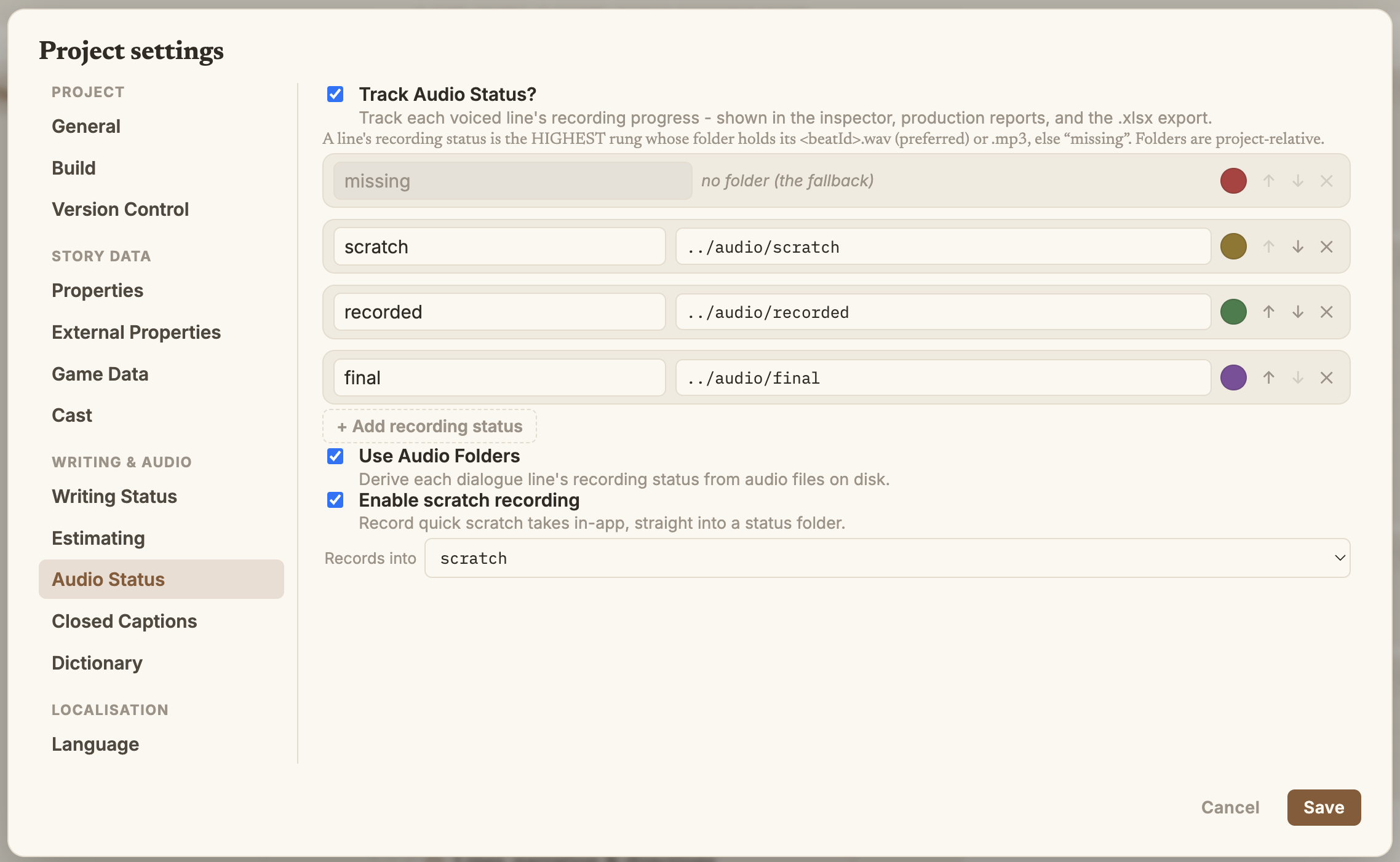
The Writing status and Recording status tabs hold the status ladders, each stage with its own colour. Recording status is opt-in (a Track audio status switch) and needs the project to be Voiced; see Recording status & audio.
The Estimating tab sizes still-unwritten scenes by a guess instead of their placeholder lines, so the report shows the work ahead. See Estimating.
The Closed captions tab sets the brackets (default [ / ]) and the caption
character (default SFX) your game uses to strip non-spoken cues from dialogue when a
player turns captions off. Avoid ( as the opener, since parentheses open a performer
direction at the start of a line. See Closed captions.
The Dictionary tab is spell-check setup (below).
The @patter properties your story remembers aren’t here. They’re the story’s working
vocabulary rather than configuration, so they have their own
Properties page at the top of the
navigator. What stays in this dialog is the contract with your game (World properties) and the
settings around it.
The tabs are grouped down the left (Project / Story data / Writing & audio / Localisation) so the list stays easy to read as it grows.
Version control
Section titled “Version control”Choose your VCS (git, Perforce, Plastic, SVN, or none) when you create the project or in Project Settings ▸ Version control. Patterpad is lock- and merge-aware: a scene locked by someone else goes read-only, your own edits check out when you save, and per-scene badges show each file’s state. The full picture, what needs the VCS tool installed and how Patter merges changes, is on its own page: Version control.
Localisation export / import
Section titled “Localisation export / import”Production ▸ Export / Import Localisation… hands your text out for translation and folds it back in (also reachable from the Language settings tab):
- Export the text for a language, or a blank template for the source, as JSON, Excel (.xlsx), or PO/POT.
- Import a translated file back. The language comes from the file (or you set it), and Patterpad tells you how many lines it updated.
Patterpad only ever shows and edits the source language; the translations live off to the side and round-trip through this dialog. The full story is under Localisation.
Building a bundle
Section titled “Building a bundle”Publish ▸ Publish Bundle (⇧⌘B) compiles your project into the .patterc file your game
loads (a toast confirms where it landed). This is what you ship to a
Patterplay runtime.
The same build runs from the terminal with patter export, so you can compile it in a script or a
CI pipeline without opening the app. See Automation: the CLI.
Auto Rebuild
Section titled “Auto Rebuild”Turn on Auto Rebuild (the Publish menu’s checkbox) and Patterpad recompiles the bundle for you a moment after you stop editing, so the .patterc on disk
stays current without you pressing Publish Bundle. Handy when your game reads the bundle straight
from disk and you want to see changes without a manual build. It’s your own setting, not the
project’s: turning it on doesn’t turn it on for everyone else working on the project.
It’s careful about it: the rebuild only writes when the compiled bundle actually changed (so it won’t churn the file on cosmetic edits), and if the project is momentarily invalid mid-edit (a half-written condition, say) it quietly keeps the last good build rather than failing. The existing stale-bundle check still flags a bundle that has fallen behind.
It’s off by default, and best left off if you commit the .patterc to a lock-based version
control system (Perforce or Plastic): rebuilding on every change would keep checking the file out.
With git (or none), and the default gitignored patter-dist/ output, it’s free of side effects.
Spell-check
Section titled “Spell-check”Patterpad checks your spelling as you write: a red wavy underline appears under words it doesn’t know in dialogue and narration (character names and your project word list are left alone). Right-click a flagged word for up to five suggestions, Add to dictionary (it saves to the project word list), or Ignore for the session. Set it up under Project Settings ▸ Dictionary: pick a built-in dictionary (en-US / en-GB) or import your own, and manage your project words. The Spell-check page has the details.
Updates
Section titled “Updates”Patterpad keeps itself up to date: Help ▸ Check for Updates… downloads the next version in the background, then asks to relaunch, taking care not to lose unsaved work.
On a Mac, a small helper installs the update once Patterpad has closed. The first time that happens, macOS may show a notice that Patterpad is running in the background. Nothing of Patterpad keeps running. The helper replaces the app and quits within a few seconds, and only runs when an update is waiting.
The helper is listed under System Settings ▸ General ▸ Login Items & Extensions, in Allow in the Background. If you switch it off, updates can’t install when you quit, and you’ll need to fetch new versions from the download page instead.
Open source under the MIT licence, made by Ian Thomas.