

Patterpad, the editor
You write Patter projects in Patterpad, a desktop app built on one idea, that a scriptwriter should be pleased to use it. The surface reads like a screenplay, the serious tooling waits until you reach for it, and the complexity stays hidden until you ask for it.
This section is a full tour, right down to the many keystrokes, gestures, and menus that are easy to miss. If you only read one other page, make it The writing surface.
First run
Section titled “First run”The first time you launch, Patterpad asks once for your name (and an optional email). That’s all, no wizard. Your name signs your review comments and suggestions, and marks who edited each line. Leave the name blank and Patterpad falls back to your computer’s user name, so skipping the prompt still signs your work sensibly. You can change either at any time from User Information (in the Patterpad app menu on macOS, or the File menu on Windows and Linux).
From there you land on the welcome screen, where you can open a project, create one, or pick from your recent projects. File ▸ Close Project brings you back to it at any time. The window stays open, and the project you closed is top of the recents list.
Under Learn from a finished project, the welcome screen offers the two worked examples Patterpad carries: the Interactive Tour, a playable project that teaches the format, and The Night Ferry, a short finished story. Each opens as your own copy, in a folder you choose. Help ▸ Open an Example reaches them from inside a project too.
Creating a project
Section titled “Creating a project”File ▸ New Project… (⌘N / Ctrl+N) shows the kits you can start from, with the
one you pick described on the right: what you get, and what pressing Play shows. Today
there’s one, the Starter project: a scene called Start with one line of narration,
so the project plays the moment it opens. Under the description you fill in:
- Project name: shows a live preview of the
<name>.patterfolder you’ll get. - Version control: git, Perforce, Plastic, SVN, or none. Patterpad sets up the right config for whichever you pick, and you can switch it later in Project Settings.
- Bundle path: where Publish Bundle writes the finished file. It starts at a
sibling
../patter-dist/<name>.pattercand leaves the name alone once you type your own path.
Then Choose location… asks where to keep your Patter project.
A Patter project is a real folder of files (see the format).
On macOS the .patter folder opens with a double-click; on Windows and Linux it’s an
ordinary folder.
You probably want to store it in whatever VCS you are using for your project, alongside your game files; but you won’t be shipping the Patter project itself, only the .patterc published bundle.
Opening where you left off
Section titled “Opening where you left off”Patterpad gets you working in one click. Open a project (⌘O / Ctrl+O), click a
recent one, or use File ▸ Open Recent. It reopens the last scene you were editing,
with your cursor back on the exact line and scrolled into view. Double-click a .patter
folder to reopen your last session, double-click a single scene file to open just that
scene, or run patterpad <path> from a shell.
Opening at a particular line
Section titled “Opening at a particular line”Launching from a shell, --at opens the project straight at a location instead of
where you left off:
patterpad my-game.patter --at L_greet # a line, by its beat idpatterpad my-game.patter --at tavern-intro # a scene or block, by its Game IDpatterpad my-game.patter --at "The Street" # a scene or block, by its namepatterpad --at L_greet # no path: reopen the last project there--at=<where> works too. <where> takes the same query as
patter resolve: it tries an exact beat id first,
then a Game ID, then a name, then a
partial match. So an id lifted straight out of a locale table, an audio filename, or a
runtime log pastes in and lands the cursor on the line it names, which is the quickest
way to answer “a tester reported a problem with this line”.
A scene target opens that scene at the top. A block, group, or line target opens its scene and puts the cursor on it. If nothing in the project matches, Patterpad prints that on the terminal and opens the project as it normally would, so a stale id in a bug report can’t stop you getting in. If Patterpad is already running, the same command jumps the open window rather than starting a second copy.
Sending a project (Patterpack)
Section titled “Sending a project (Patterpack)”A .patter project is a folder of files, which is perfect for version control but awkward
to email or drop in a chat. A Patterpack is that whole project squeezed into a single
.patterpack file you can hand to someone.
File ▸ Export as Patterpack… writes a <name>.patterpack. Like Save As, it
carries the source only. Your scenes, settings, notes, and translations travel; recorded
audio and the published .patterc bundle don’t (they’re large and rebuilt anyway).
File ▸ Open Patterpack… takes a .patterpack, asks where to create the project
folder (defaulting to <name>.patter beside the pack), unpacks it there, and opens it.
Opening always makes a fresh folder and never writes over an existing project.
Double-clicking a .patterpack (or dropping it on the app) does the same. Patterpad asks
where to unpack it, then opens the result.
Because a Patterpack is a real copy, the person you send it to can open it, write, and send one back. It is the friendly way to pass a project to a collaborator who is not on your version-control system. If your game shares its scopes with other tools, a snapshot of them travels in the pack too (see the game’s shared scopes travel too).
The workspace
Section titled “The workspace”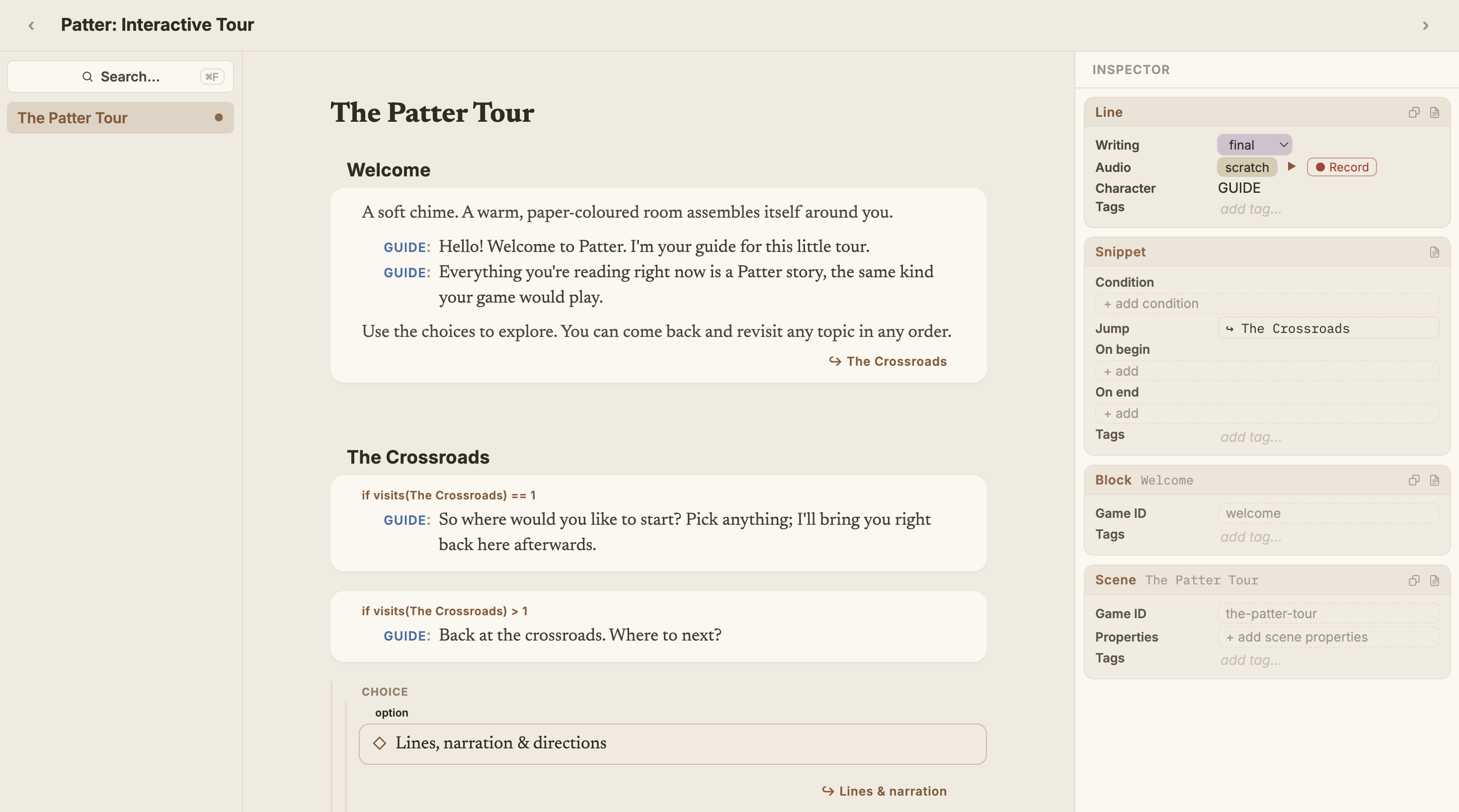
⌘1 and ⌘2.Three columns, with the script always in the centre.
On the left, the Scenes pane. The Properties page sits at the top, above your
scenes, showing how many @patter properties the project declares (see
Conditions, effects & data).
Below it, your list of scenes. The open scene unfolds to list its blocks. The block your
cursor is in stays marked, and clicking one jumps straight to it. Drag a scene to
reorder the list; the order is saved with the project (it changes nothing about how the
story plays). Add a scene with the + New Scene row at the foot of the list (or
File ▸ New Scene…, ⇧⌘N). A new scene starts from a scene kit: Blank, a
Conversation with choices, a Hub conversation, Barks, or a Cutscene. Each one
plays the moment it lands, and the kit you pick is described before anything is made. A kit
with lines asks who speaks them; if your cast is empty, the name you give is added to it.
Delete a scene from its right-click menu (or
File ▸ Delete Scene…), and if other scenes jump into it, the confirm names them, and the
dangling jumps show as problems until you repoint them. Toggle the pane with
View ▸ Show Scenes (⌘1).
In the centre, the script, where you write. This one stays put; the sides are guests.
On the right, the Inspector, the detail for whatever your cursor is on. Toggle it with
View ▸ Show Inspector (⌘2).
Drag the edge between a pane and the script to resize it, or double-click that edge to reset the pane to its usual width. View ▸ Reset View brings both panes back (and rescues a play window that’s drifted off-screen). Patterpad remembers your pane widths between sessions.
Above the script, the top bar carries a ← → pair that retraces the pages you have
visited (scenes, the Properties page, the Project Overview), greyed when there’s nowhere
to go, and also on View ▸ Back / Forward (⌃⌘← / ⌃⌘→). It is the other axis from the
navigator. The navigator shows you where things live, and Back retraces where you have been.
When you want nothing but the words, Writing View (⇧⌘M) clears both panes and the
bottom bars away, leaving just the script and the hint bar. See Reading & focus.
Saving
Section titled “Saving”File ▸ Save (⌘S) saves the current scene. If a teammate has the file locked,
Patterpad respects that and tells you who’s holding it, rather than overwriting their
work. Patterpad saves for you a moment after you stop typing, and also when you switch
scenes, play, leave the window, or quit.
The rest of the tour
Section titled “The rest of the tour”- Open
examples/projects/tour.patterand Play from Start for an interactive tour of choices, selectors, properties, conditions, and closed captions, written as a Patter story. - The writing surface: cues, beats, and every keystroke.
- Structure & branching: choices, selectors, jumps.
- Conditions, effects & data: the inspector and the expression editor.
- Reading & focus: Writing View, colour themes, and fonts.
- Search & navigation: find any line by text, title, address, or id, and replace across the project.
- Playtesting: walk the story live on the real engine.
- Reviewing & feedback: comments, suggested rewrites, and delivery-routed notes. (Tracking and reports live under Running the project.)
- Publishing: one playable file to send to anyone or put on the web, with no engine and no build.
- Projects & settings: version control, localisation, dictionaries.
- Keyboard shortcuts: the full reference.
Open source under the MIT licence, made by Ian Thomas.